What Git Actually Is
At its core, Git is a system that keeps track of changes in files. Imagine writing a long doc and saving a new copy every time you change a paragraph that’s version control, but Git does it smarter and faster. It remembers every change you’ve made and lets you jump back to any point in your project’s history.
Developers use Git because code projects evolve fast. You might fix a bug on Monday and break something else on Tuesday. With Git, you can rewind, compare versions, or test new ideas in isolation without risking the main codebase. It’s perfect for both solo work and team efforts because everyone can work on different parts of the same project without stepping on each other’s toes.
Instead of chaos files overwriting files, errors slipping through unnoticed you get structure. Git tracks every change, tells you who made it, when, and why. So even if you’re debugging at midnight, you’ve got a clear record of what’s changed and who to blame (or thank).
GitHub: Not Just a Cloud Folder
How GitHub Fits Into the Git Picture
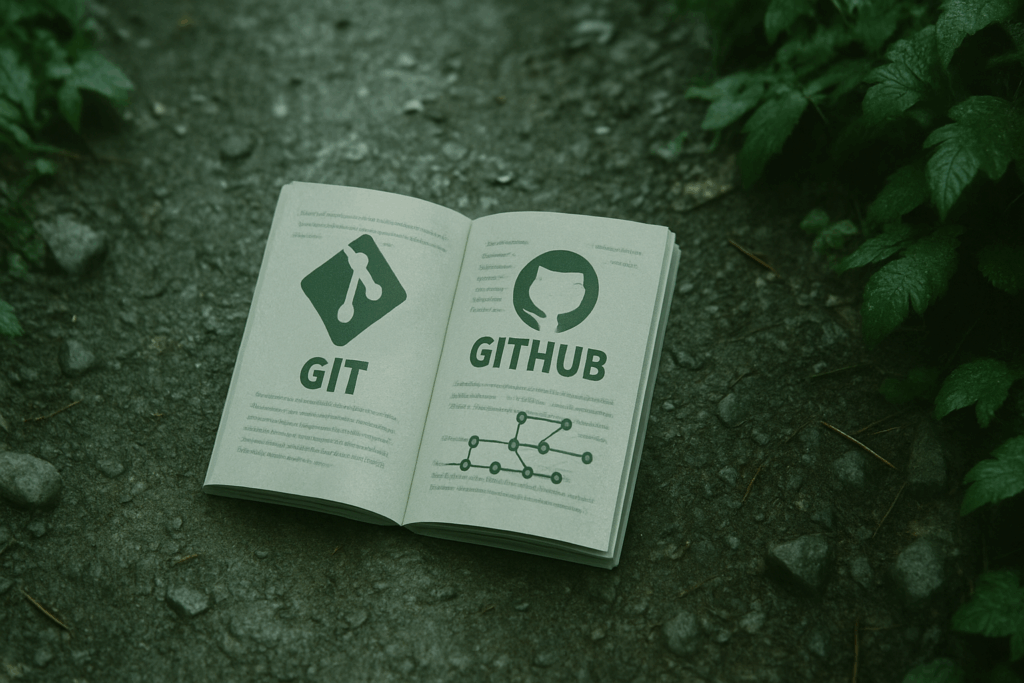
Git is a powerful version control system, but GitHub makes it easier and more social. Think of Git as the engine and GitHub as the interface where teams collaborate, coordinate, and share their work in real time.
GitHub is an online hosting service built around Git that lets you:
Store and manage your code remotely
Track changes across different versions of your project
Collaborate with your team in a centralized space
Handle reviews, issues, and documentation alongside your code
Understanding the Basics: Repositories, Branches, and Commits
To get comfortable using GitHub, you should understand three key building blocks:
1. Repositories (or “repos”)
These are project containers. A repository holds all the files, history, and configurations for a project. Repositories can live locally on your machine or be hosted remotely on GitHub.
2. Branches
Branches are individual lines of development. By default, every repo has a main or master branch, but you can (and should) create branches for new features, bug fixes, or experiments. This allows multiple versions of the codebase to coexist safely.
Use feature branches for isolated development
Merge branches when changes are ready to go live
Avoid working directly on your main branch
3. Commits
A commit is a snapshot of your code at a given point in time. Each commit includes a message that explains what changed and why. Commits help tell the story of your project.
Make small, frequent commits so changes are easier to track
Always write clear, descriptive messages
Public vs. Private Repositories: Know When to Use Each
GitHub gives you the option to make your repository public (visible to everyone) or private (visible only to those you invite).
Public Repos
Great for open source projects
Useful for creating a portfolio to show off your code
Open to community contributions and feedback
Private Repos
Ideal for personal projects not ready for public eyes
Essential for proprietary or client sensitive work
Good for teams on commercial software projects
Pro Tip: Start in private if you’re unsure, then make the repo public when you’re ready to share.
Understanding these foundational elements will make your GitHub experience more efficient and less overwhelming. As you grow more comfortable, you’ll discover how GitHub can streamline your workflow and connect you with the larger developer community.
Core Commands You’ll Use Right Away
Let’s be real Git can feel like a wall of jargon to newbies. But these core commands? They’re your daily bread. Learn them, and you’re operational.
Starting a Project: git init and git clone
Want to start fresh? git init kicks off a new Git repository right in your project folder. You’re telling Git, “Hey, track this now.”
Working on something that’s already out there say, a team’s repo on GitHub? Use git clone <url> to pull the whole thing down to your local machine. That’s your starting point.
Updating Your Work: git add, git commit, git push
Here’s the loop you’ll run again and again.
git add . stages all your new/changed files. You’re saying, “Track these changes.”
git commit m "message" locks them into history. Every commit is a snapshot and your message should explain what you did.
git push sends your local commits up to GitHub, so the world (or your team) sees your progress. No push, no update on the repo.
Pull Requests and Merge Conflicts
When your changes are ready for review (especially in team settings), you’ll open a pull request. That’s you saying, “Hey team, review and merge this into the main code.”
Merge conflict? That’s when Git can’t auto resolve differences between your code and someone else’s. It sounds scary, but you just open the file, look for the conflict markers, and decide which code to keep. Clean it up, commit again, and push. Done.
Master these basics, and you’re functional. Fast. The finesse comes later.
Real World Usage: Teamwork Without Turmoil

When multiple developers begin working on the same codebase, things can go sideways fast. Git was built to avoid this by providing a structured way to collaborate without stepping on each other’s toes.
Working Together Without Wrecking Code
With Git, team members can each contribute code independently, without the fear of overwriting someone else’s work. This is mainly accomplished through Git’s ability to track every change, no matter who makes it or when.
Every developer works on their own copy of the repository
Changes are recorded as commits, with full history and accountability
Git flags conflicts only when changes touch the same lines of code
The Power of Branches
Branches are at the heart of healthy collaboration. They allow developers to isolate their work in logical segments, merge in features when they’re ready, and avoid unintended cross contamination of code.
Use cases for branches:
Feature development: Keep new features independent until complete
Bug fixes: Patch issues without interfering with ongoing feature builds
Experiments: Try things out without risking your main application code
Pro tip: Always create a new branch off your main branch (typically main or master) before starting new work.
Scalable Team Workflows
As teams grow, having a structured workflow becomes vital. Clear standards and naming conventions avoid confusion and help with smoother code integration.
A Common Git Workflow Example:
- Clone the main repository to your local machine
- Create a new branch for your feature or fix:
git checkout b feature/login form - Commit your changes regularly with meaningful messages
- Push your branch:
git push origin feature/login form - Create a pull request (PR) to merge into
main - Request feedback/review from teammates
- Resolve any conflicts if needed, then merge
This ensures everyone collaborates within a process that promotes code quality, team visibility, and long term maintainability.
Mistakes Beginners Make (And How to Avoid Them)
Copy pasting commands without understanding
Everybody’s done it: see a command on Stack Overflow, copy, paste, and pray. But Git isn’t just a recipe it’s a set of tools. If you don’t understand what a command does, it can wreck your repo or trigger confusing behavior later. Learn the basics of each command. Take five minutes to Google it or run git help <command>. Knowledge beats blind trust every time.
Ignoring the .gitignore file and committing junk
Your .gitignore file isn’t optional. Without it, you end up tracking build files, secret keys, or cache clutter that has no place in your repository. This slows down your repo, clutters your history, and risks leaking sensitive info. Use templates from GitHub or tools like gitignore.io to start. Then treat your .gitignore like a seatbelt always buckle in before you drive.
Panic mode during merge conflicts stay calm, solve step by step
Merge conflicts are the Git equivalent of dropping your phone face down. Scary at first, but usually fixable. Don’t let the red markers and error messages throw you off. Git tells you exactly what’s wrong. Keep a diff viewer handy (VS Code does this well), isolate the conflict, decide which version wins or merge both and commit the result. It’s not failure; it’s maintenance. Breathe. Break it down. Fix it clean.
Resources to Get You Moving
Getting started with Git and GitHub can feel overwhelming at first, but the right resources make all the difference. Whether you’re a visual learner, prefer hands on experience, or like to learn by reverse engineering real code, there’s something for everyone.
Learning Platforms & Guided Tutorials
If you’re looking for a structured path to Git fluency, online learning platforms offer quality content designed for beginners:
GitHub Learning Lab Interactive, project based lessons with real GitHub workflows.
freeCodeCamp Offers a free, in depth Git and GitHub module that includes command line practice.
Codecademy: Learn Git Gamified learning environment with built in Git terminal for guided practice.
Coursera & Udemy Courses like “Version Control with Git” or “GitHub for Beginners” often include real world use cases.
Sample GitHub Projects to Follow and Fork
Nothing speeds up learning faster than studying real code in action. Here’s how you can use GitHub as a learning playground:
Browse trending repositories in your favorite language to see how real projects are structured.
Fork beginner friendly projects with labels like good first issue or help wanted.
Explore open source projects like:
EddieHubCommunity Encourages contribution from newbies.
first contributions Helps you make your first GitHub PR step by step.
A Resource Hub for Tech Minded Beginners
For consistent updates on modern tools and software trends, check out:
ETRS Tech A dynamic resource center packed with explainers, updates, and beginner oriented insights. Perfect for keeping your skills and awareness sharp in the ever moving tech landscape.
Start exploring, experimenting, and expanding your comfort zone because experience is the best Git tutor.
Why Learning Git Early Is a Power Move
Learning Git as early as possible can give new developers a serious edge. Whether you’re aiming to land a job, contribute to meaningful projects, or simply become more organized with your coding habits, Git can be a game changer.
Stand Out in Interviews and Code Reviews
Understanding Git isn’t just a technical skill it’s a way to demonstrate professionalism and readiness for real world development environments.
Show that you can manage and document your code effectively
Speak confidently about version control during interviews
Perform clean and organized commits that impress reviewers
Contribute to Open Source Projects
GitHub is the home of countless open source projects waiting for contributors. By learning Git:
You can fork repositories and suggest improvements without breaking anything
You’ll understand how to submit pull requests the correct way
You’ll gain experience collaborating with developers around the world
Think Like a Scalable, Team Ready Developer
Git teaches more than syntax it builds habits of clean, traceable, and intentional coding. These habits scale as your projects grow in complexity.
Get comfortable organizing your work into branches and features
Practice disciplined workflows that mirror team environments
Avoid common solo developer pitfalls like overwriting and lost code
Stay consistent. Git gets easier with use and once you get it, you’ll wonder how you ever coded without it.
 Ask Davidaner Hankinsons how they got into gadget reviews and comparisons and you'll probably get a longer answer than you expected. The short version: Davidaner started doing it, got genuinely hooked, and at some point realized they had accumulated enough hard-won knowledge that it would be a waste not to share it. So they started writing.
What makes Davidaner worth reading is that they skips the obvious stuff. Nobody needs another surface-level take on Gadget Reviews and Comparisons, Software Development Insights, Tech Tutorials and How-To Guides. What readers actually want is the nuance — the part that only becomes clear after you've made a few mistakes and figured out why. That's the territory Davidaner operates in. The writing is direct, occasionally blunt, and always built around what's actually true rather than what sounds good in an article. They has little patience for filler, which means they's pieces tend to be denser with real information than the average post on the same subject.
Davidaner doesn't write to impress anyone. They writes because they has things to say that they genuinely thinks people should hear. That motivation — basic as it sounds — produces something noticeably different from content written for clicks or word count. Readers pick up on it. The comments on Davidaner's work tend to reflect that.
Ask Davidaner Hankinsons how they got into gadget reviews and comparisons and you'll probably get a longer answer than you expected. The short version: Davidaner started doing it, got genuinely hooked, and at some point realized they had accumulated enough hard-won knowledge that it would be a waste not to share it. So they started writing.
What makes Davidaner worth reading is that they skips the obvious stuff. Nobody needs another surface-level take on Gadget Reviews and Comparisons, Software Development Insights, Tech Tutorials and How-To Guides. What readers actually want is the nuance — the part that only becomes clear after you've made a few mistakes and figured out why. That's the territory Davidaner operates in. The writing is direct, occasionally blunt, and always built around what's actually true rather than what sounds good in an article. They has little patience for filler, which means they's pieces tend to be denser with real information than the average post on the same subject.
Davidaner doesn't write to impress anyone. They writes because they has things to say that they genuinely thinks people should hear. That motivation — basic as it sounds — produces something noticeably different from content written for clicks or word count. Readers pick up on it. The comments on Davidaner's work tend to reflect that.